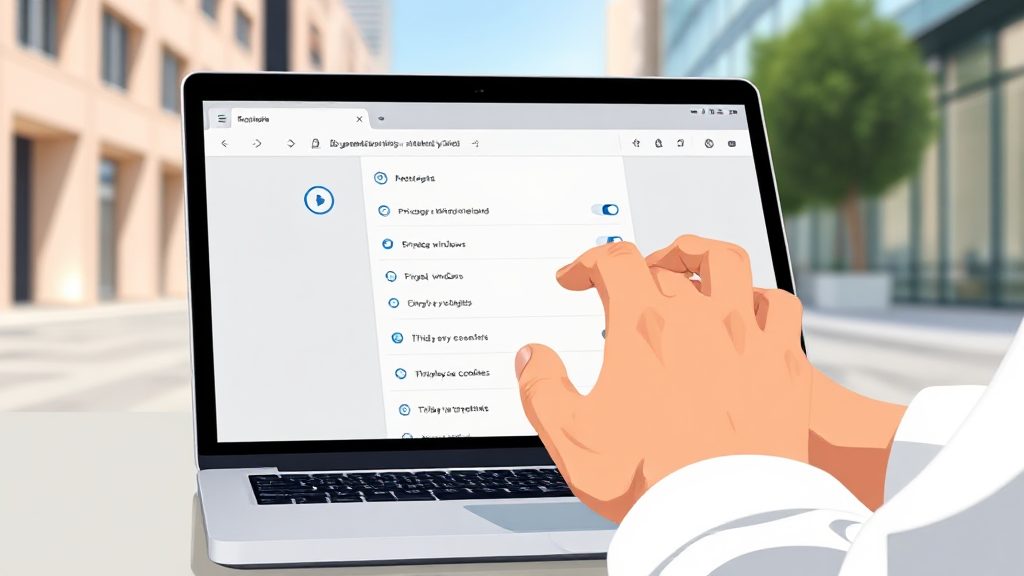
Browser Settings That Limit What Sensitive Searches Leave Behind
Browser Settings That Limit What Sensitive Searches Leave Behind
You type a sensitive phrase into the address bar, hit enter, and the page loads. What you may not think about is everything that happens next: the query sits in your history, autocomplete remembers the first few letters, cookies follow you to other tabs, and your browser syncs the whole record to every device you own. If you have been searching for terms such as Chandigarh call girls, this guide is about reducing that digital residue without pretending you can erase everything.
The search intent behind these queries is usually practical: readers want to understand what is available, compare options, and find a legitimate listing. The privacy concern is equally practical. Below are four concrete browser settings you can change today, followed by a quick checklist and answers to the questions people ask most.
1. Turn Off Search and URL Suggestions
Autocomplete is convenient until it stores phrases you would rather not see in a dropdown in front of someone else. Most browsers send every keystroke to a suggestion service before you finish typing, and that partial text can be logged.
How to disable suggestions
- Open your browser settings and find the search or privacy section.
- Turn off search suggestions and URL autocomplete.
- Clear the existing suggestion history so old partial queries stop appearing.
This does not hide your activity from your internet provider, but it prevents the browser itself from replaying your past queries in a dropdown. It is the single most visible change most people notice.
2. Use a Private Window and Understand Its Limits
Private or incognito mode prevents the browser from saving history, cookies, and form data after you close the window. That is useful when you are researching something sensitive on a shared computer.
What it does not do is hide your traffic from your network, your employer, or the websites you visit. A private window is a local cleanup tool, not anonymity. If you are comparing call girls in Chandigarh listings, use a private window to keep the session out of your normal history, but do not assume the site cannot see your IP address.
What a private window actually clears
- Browsing history for that session
- Cookies created during the session
- Form entries and temporary cache files
Bookmarks and downloaded files remain, so check your downloads folder afterward if that matters to you.
3. Block Third-Party Cookies and Tracking Scripts
Third-party cookies are the mechanism that lets an ad network recognize you across unrelated sites. If you visit one page and then see related ads elsewhere, that is usually the cause. Most modern browsers now offer a setting to block third-party cookies by default.
Settings worth enabling
- Block third-party cookies in the privacy section.
- Enable the browser’s built-in tracking protection at the standard or strict level.
- Review site permissions and remove any site you do not recognize from camera, microphone, and location access.
Be aware that strict blocking can break some login flows and embedded media. If a page stops working, lower the setting for that site only rather than turning protection off globally. When you look at a Chandigarh escorts service page, blocking third-party scripts reduces the chance that an ad network links that visit to your other browsing.
4. Manage Sync, History, and Data Retention
Browser sync is the quietest leak. If you are signed in and sync is on, every search and bookmark is copied to your account and to other devices. Someone with access to any of those devices, or to the account itself, can see the record.
Practical steps
- Decide whether sync is necessary on the device you use for sensitive searches.
- If it is, exclude history from sync where your browser allows it.
- Set history retention to a shorter period, or clear it on exit.
- Check the sync dashboard for old devices you no longer use and remove them.
Also review saved passwords and autofill entries. A saved login for a site you visited once can persist for years. Removing it takes seconds and reduces what a shared or repaired device exposes.
Quick Checklist Before You Search
| Setting | What it reduces |
|---|---|
| Search suggestions off | Query phrases appearing in dropdowns |
| Private window | Local history and cookies after closing |
| Third-party cookies blocked | Cross-site ad tracking |
| Sync history excluded | Copies on other devices and accounts |
Run through this list once, then revisit it after browser updates, which sometimes reset privacy defaults. None of these steps makes you invisible, but together they cut the most common ways a sensitive search follows you around.
Frequently Asked Questions
Does incognito mode hide my search from my internet provider?
No. Private browsing only stops the browser from saving local history and cookies. Your network provider and the websites you visit can still see the connection. If network-level visibility matters, a private window is not enough on its own.
Will clearing history remove everything a sensitive search left behind?
Not always. Clearing history removes local records, but synced copies on other devices, saved passwords, downloads, and server-side logs are separate. Check sync settings and downloaded files as well as the history menu.
Can a website still track me if I block third-party cookies?
The site you visit can still see your visit and your IP address. Blocking third-party cookies mainly limits ad networks and analytics scripts from recognizing you across other sites. It reduces cross-site tracking, not first-party logging.
Treat browser hygiene as routine maintenance rather than a one-time fix. A few minutes in settings, repeated after major updates, keeps the trail shorter and your devices more predictable.